Preparing for Your Viking Cruise: My Viking Journey Setup
My Viking Journey is your online planning portal and the best place to manage your cruise before departure. After creating your account, you'll be able to review your reservation, select your air, stateroom, and dining preferences, purchase optional packages, prepay gratuities, and complete other important planning tasks. This guide will walk you through the setup process and help you make the most of the tools available in My Viking Journey.
Creating My Viking Journey Account
Before you begin, have your Viking cruise booking number available. You'll need it to create and link your reservation to your My Viking Journey account.
This video will walk you through the account setup process step by step, so you can access your reservation and begin personalizing your cruise experience.
Go to https://www.vikingrivercruises.com/my-trip/my-viking-journey/index.html and click on VISIT MY VIKING JOURNEY.
Click the “create your account” link at the bottom of the page.
Enter the email address you want to use and then click CONTINUE.
You will then receive a verification code in your email. Copy the code, enter it on the next screen, and click VERIFY CODE.
Next create your account by entering your full name and booking number, and then create a password.
Read the Booking Terms and Conditions and then select “I accept the Booking Terms and Conditions” and then click CREATE ACCOUNT.
Read the Passenger Ticket Contract and then select “I have read and accept the Passenger Ticket Contract” and then click CONTINUE.
Completing Guest Information Form
Your Guest Information Form provides Viking with the details needed to prepare for your cruise. Be sure to complete every section carefully, including your passport information, emergency contact, and any required travel details. Completing this form as early as possible will help ensure a smooth planning process and avoid delays later.
Log into My Viking Journey
Click on Guest Documents.
Under Guest Information Form click LEARN MORE.
Your name may already be filled in. If so, please be sure to check that it matches your passport name exactly. If it does not, email katie@aclandworldtravel.com as soon as possible to have it corrected.
Complete the GUEST INFORMATION section, including your email, gender, date of birth, phone number, address, and nationality.
Complete the PASSPORT INFORMATION section, including passport number, country passport issued, country of birth, issued on date, expires date. Your passport expiration date must be more than 6 months after your disembarkation date.
Complete the TRAVEL INSURANCE INFORMATION section, including insurance provider, insurance provider telephone, and insurance policy number. Note that if you’ve purchased travel protection through Viking, you do not need to complete this section.
Complete the EMERGENCY CONTACT section, including full name, address, phone number, and relationship to guest.
Click UPDATE.
Repeat for all guests in the room.
Selecting Air Preferences
If you’ve purchased Viking Air, complete the steps below to select your air preferences.
Log into My Viking Journey.
Click on Manage My Air.
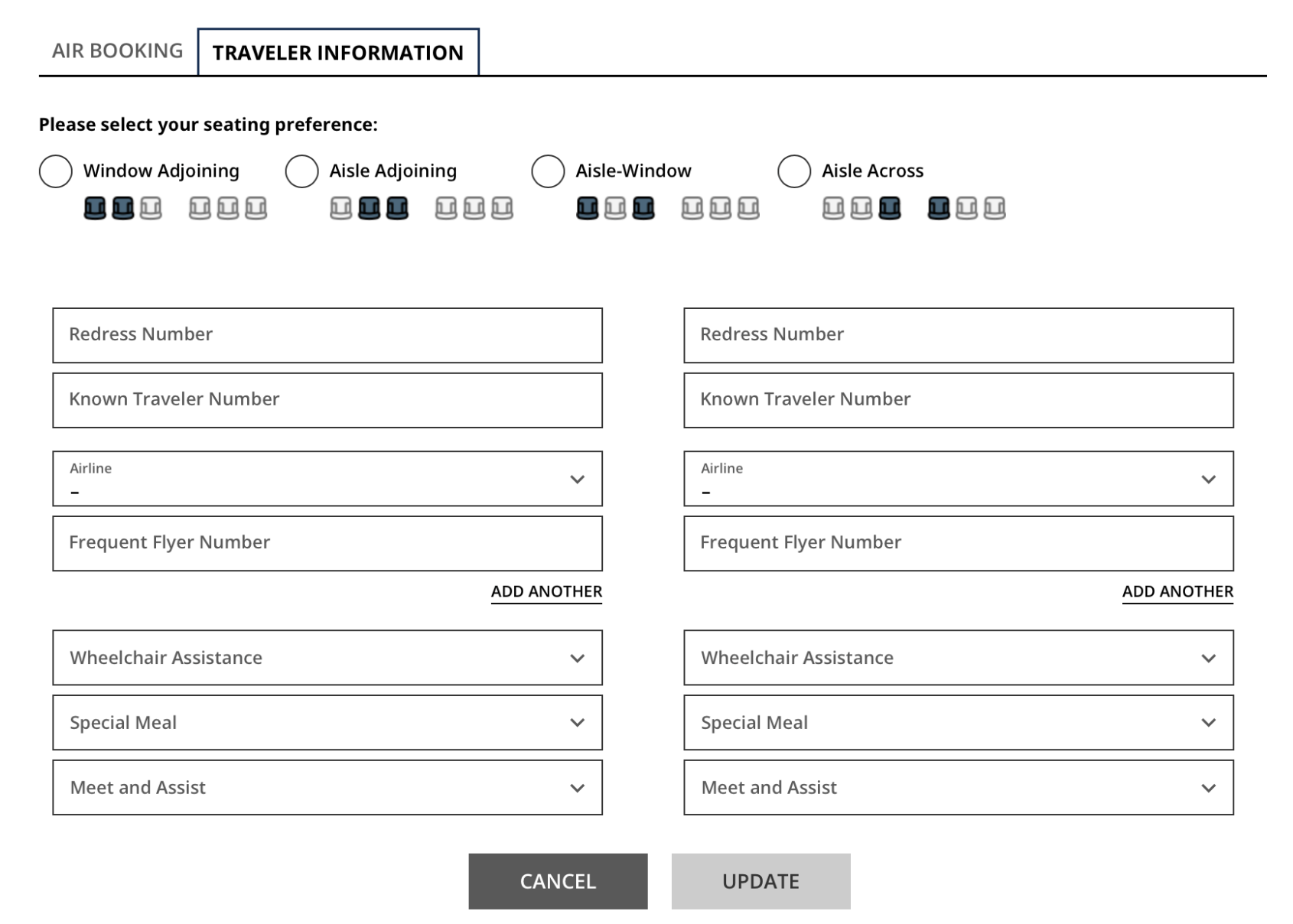
Click on the TRAVELER INFORMATION tab.
Select your seating preference.
(Optional). Enter your redress number, known traveler number, any airline frequent flyer numbers, and if you need special meals or assistance.
Click UPDATE.
Click the < HOME button at the top left to return to your dashboard.
Selecting Stateroom Preferences
Log into My Viking Journey.
Click on Onboard Experience.
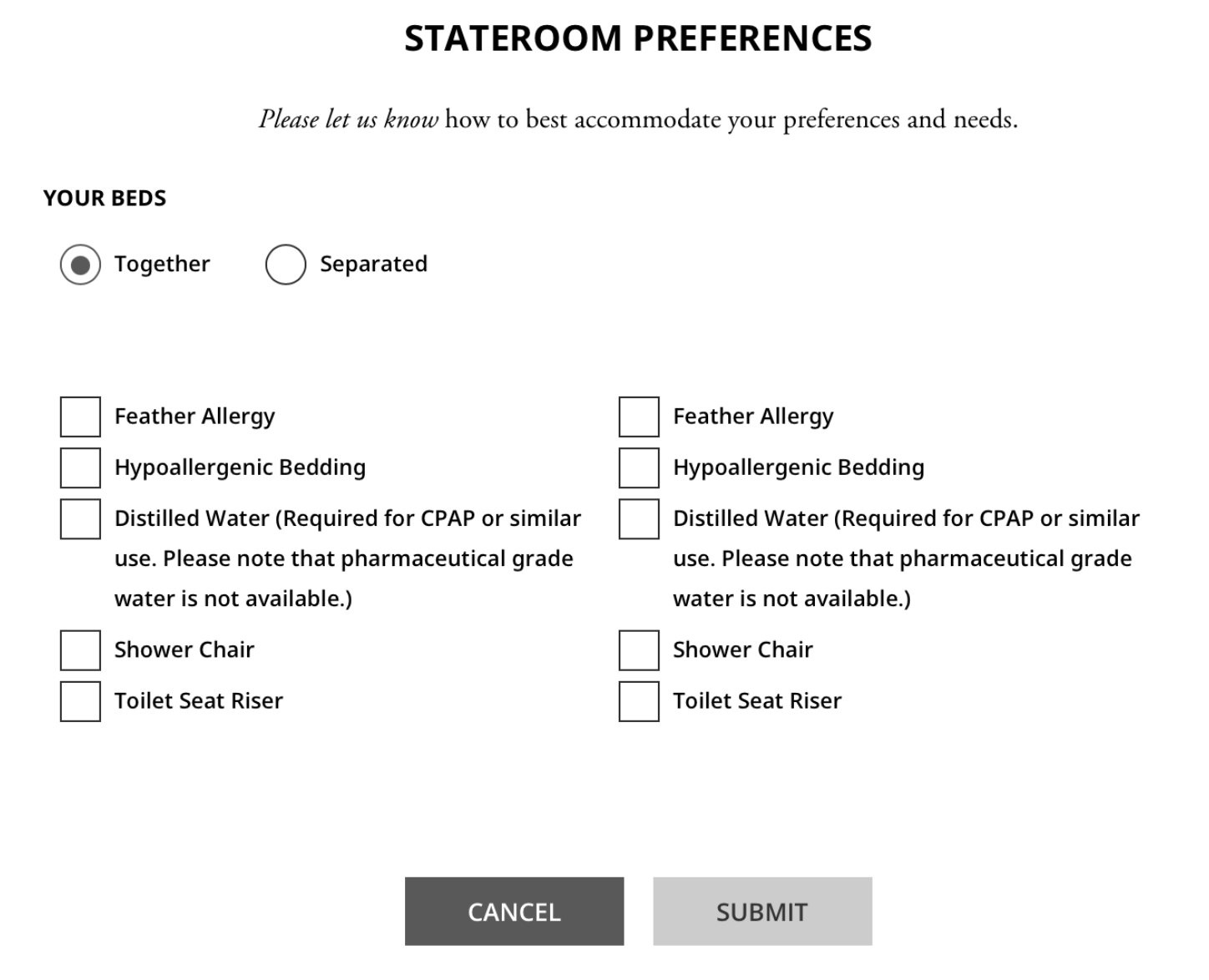
Click on the PREFERENCES tab.
Next to Stateroom Preferences click the EDIT button.
Select whether you’d like your beds together or separated and any other room preferences that you have.
Click SUBMIT.
Selecting Dietary Preferences
Log into My Viking Journey.
Click on Onboard Experience.
Click on the PREFERENCES tab.
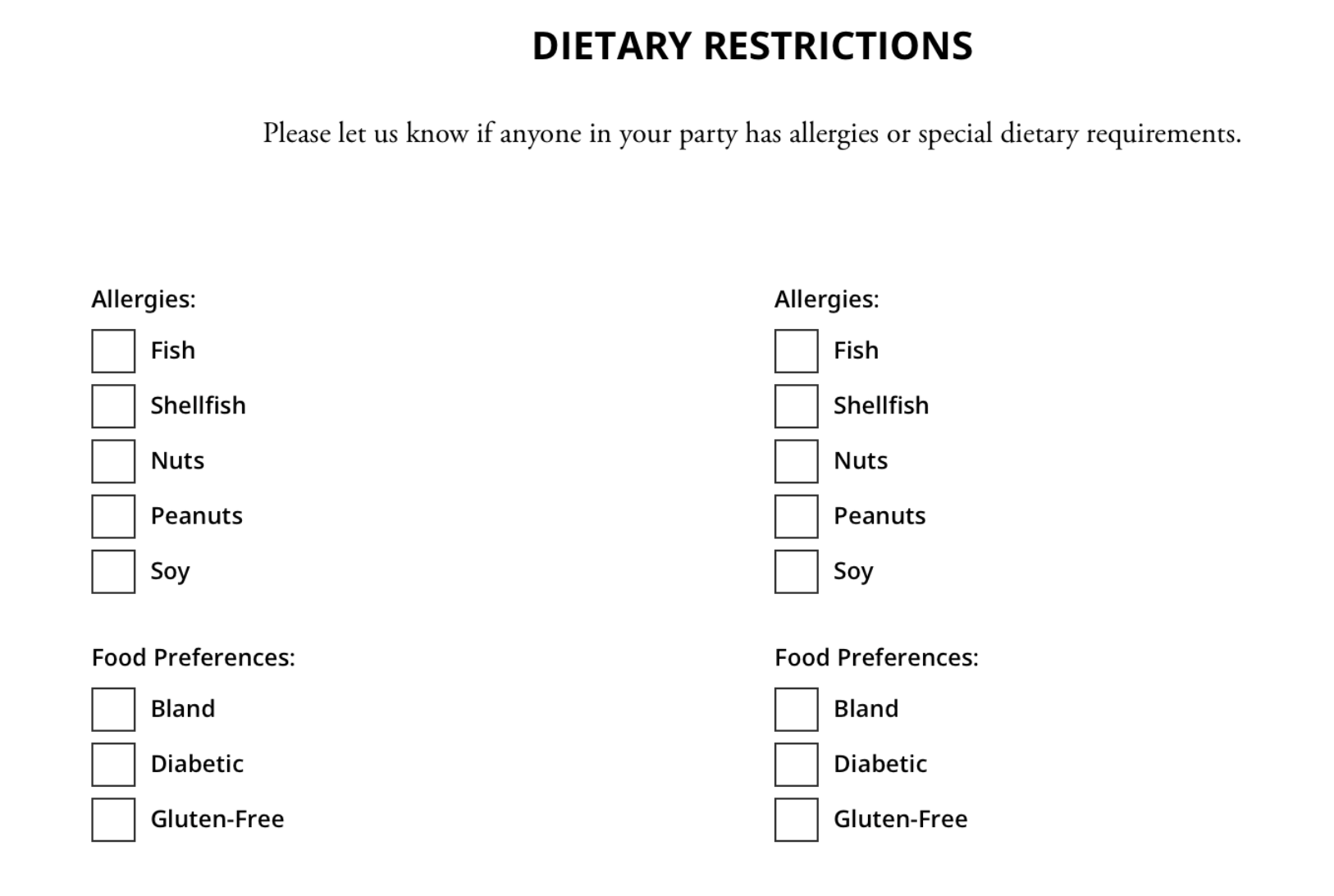
Next to Dietary Restrictions click the EDIT button.
Select any allergies or special dietary requirements.
Click SUBMIT.
Purchasing the Beverage Package (Optional)
Wine, beer, and sodas are included with onboard lunch and dinner at no extra cost.
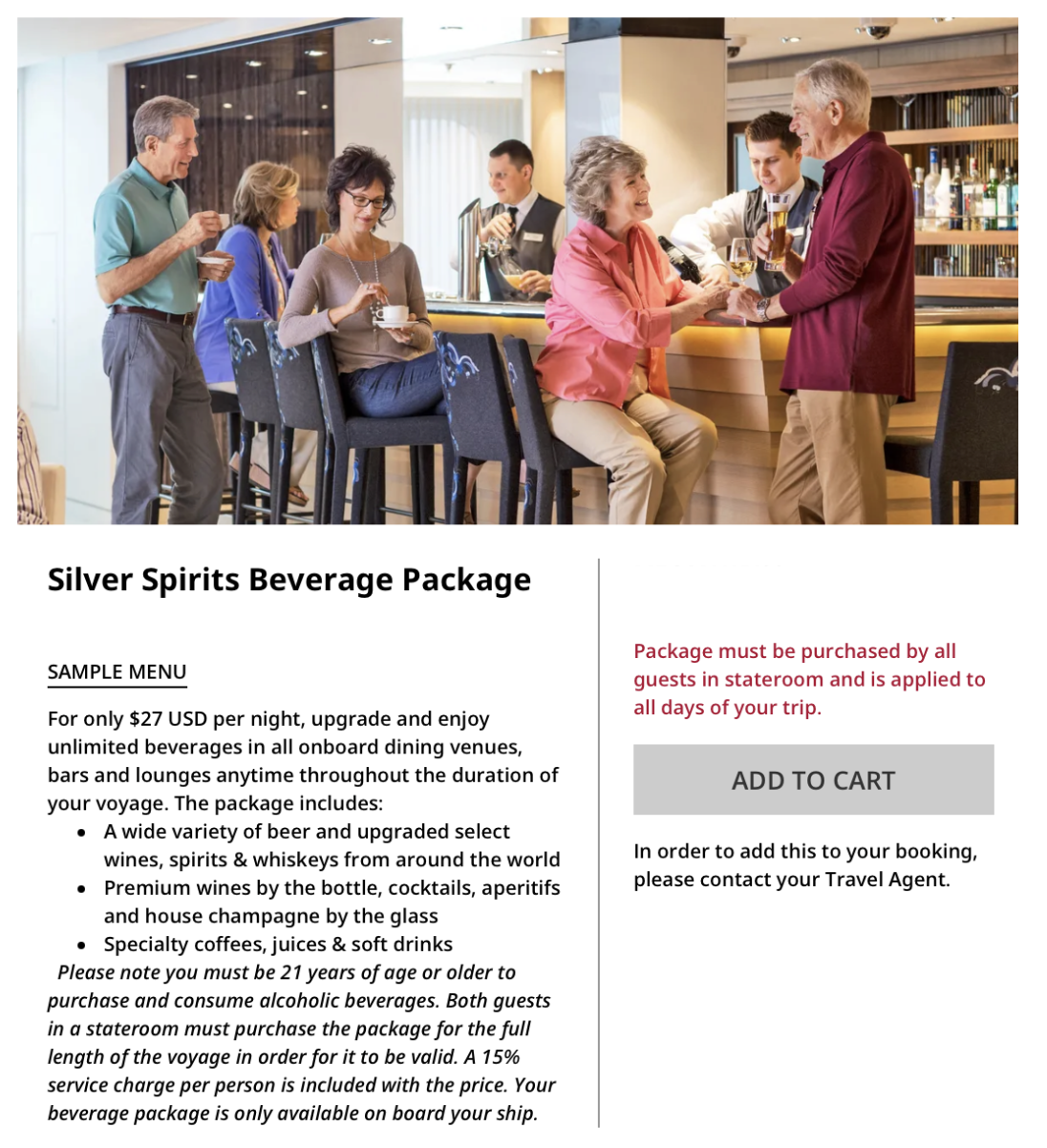
If you would like to enjoy unlimited beverages in all onboard dining venues, bars and lounges anytime throughout the duration of your voyage, you can purchase the Beverage Package for $27 per night.
Log into My Viking Journey.
Click on Onboard Experience.
Click on the DINING & BEVERAGE tab.
Next to Silver Spirits Beverage Package click the LEARN MORE button.
Click ADD TO CART to purchase the package for both guests in your room.
Note that beverages outside of the included beverages can also be purchase a la carte if you do not purchase the Beverage Package.
Prepaying Gratuities (Optional)
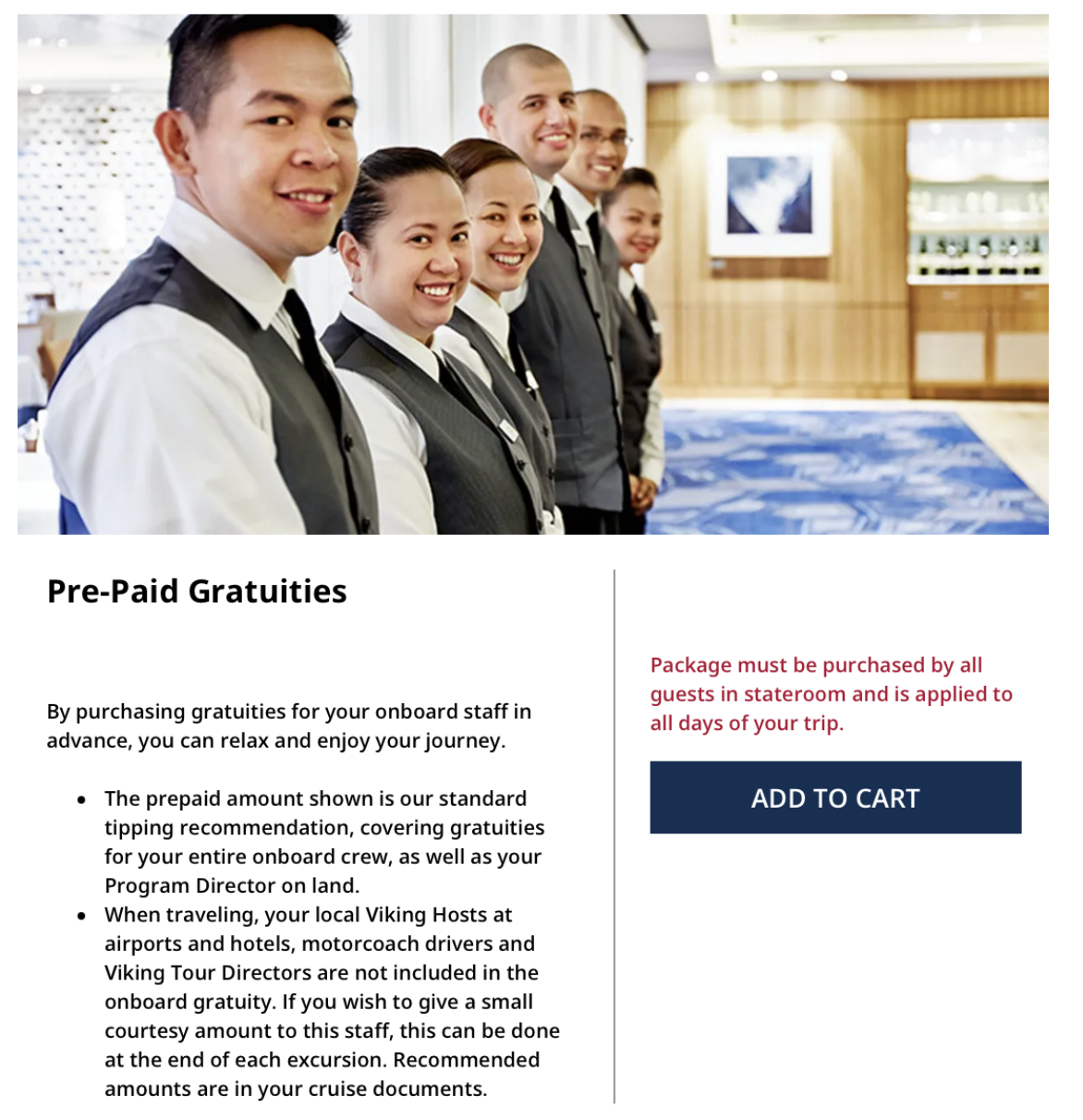
You can relax and enjoy your journey by pre-purchasing gratuities in your My Viking Journey account at $20 per guest, per night; or, Viking will automatically add $20 per guest, per night to your shipboard account, which appears on your final invoice at the end of your cruise.
Log into My Viking Journey.
Click on Before You Go.
Next to Pre-Paid Gratuties click the LEARN MORE button.
Click ADD TO CART to prepay gratuities for both guests in your room.
These resources are part of the personalized guidance I provide to my clients before they travel. If you're planning a Viking Cruise, I'd be happy to help you choose the right itinerary and guide you through every step of the planning process. Ready to start planning? Contact me to begin your Viking cruise journey. ~Katie Acland